contentEditable 에러 해결 로그
- 이번 Notion Clone 프로젝트에서는 contentEditable을 사용해 텍스트 편집 기능을 구현해야 했다. contentEditable 속성은 HTML 요소를 직접 수정할 수 있게 해주는 매우 유용한 기능이지만, 다양한 브라우저 간의 호환성과 예기치 않은 버그로 인해 때때로 문제를 일으킬 수 있다. 이번 글에서는 프로젝트 진행 중에 겪었던 주요 contentEditable 버그들과 그 해결 과정을 공유하고자 한다.
먼저, contentEditable을 사용하면서 직면했던 가장 흔한 문제는 다음과 같다.
- 리렌더링으로 인한 커서 위치 초기화
- 힌글과 같은 조합문자 문제
- 서버 전송 문제
- 페이지 이동시 전 커서위치 저장으로 인한 에러
- 마지막 텍스트만 데이터 전송이 안되는 문제
이러한 문제들을 해결하는 데 거의 일주일이 걸렸다... 각 문제에 대한 해결 과정을 하나씩 살펴보자.
1. 리렌더링으로 인한 커서 위치 초기화
- contentEditable는 input과 달리, text를 입력 받으면 contenteditable 내부에 요소 노드들이 생성되어 그에 따라 노드들이 출력된다. value는 존재하지 않고 onInput 이벤트를 이용해 textContent 값을 받아올수 있다.
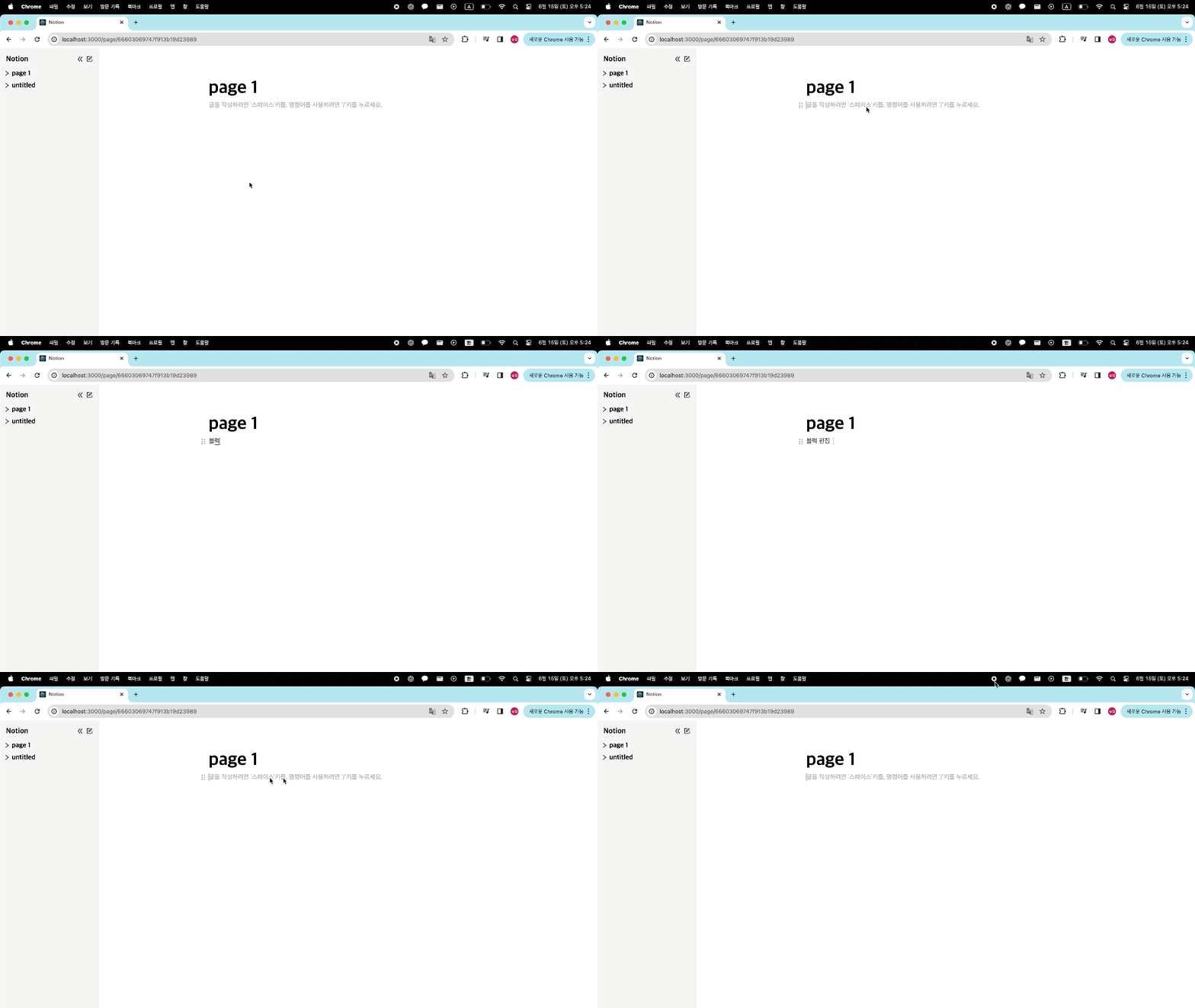
- 이제 text를 input 태그와 같이 state에 저장하면 될것이라 생각했는데 여기서 커서가 처음으로 돌아가는 문제가 생겼다
- 찾아보니 useState로 상태를 관리하면 상태가 변경될 때마다 컴포넌트가 리렌더링되어, 텍스트 입력 시 리렌더링되면 커서 위치가 초기화되는 문제가 발생한다고 한다...
해결방법
- contentEditable에서 발생하는 커서 위치 초기화 문제를 해결하려면, 텍스트를 입력할 때마다 커서 위치를 기억하고 리렌더링 시 기억했던 커서 위치를 되돌리면 된다. 이를 위해 JavaScript의 Range API를 사용할 수 있다.
Range API
Range API는 문서의 특정 부분을 선택하고 조작할 수 있는 기능을 제공한다. 이를 이용하여 커서 위치를 저장하고 복원할 수 있다.
-
window.getSelection()
- 현재 문서에서 사용자가 선택한 텍스트 범위를 반환. Selection 객체를 통해 현재 선택된 영역에 접근할 수 있다.
-
selection.getRangeAt(index)
- Selection 객체에서 지정된 인덱스의 Range 객체를 반환한다. 일반적으로 선택된 영역이 하나뿐이므로 인덱스 0을 사용한다.
-
document.createRange()
- 새로운 Range 객체를 생성한다. 이 객체를 통해 문서의 특정 부분을 선택할 수 있다.
-
range.setStart(node, offset)
- Range 객체의 시작점을 설정한다. node는 시작할 DOM 노드, offset은 해당 노드 내에서의 위치를 나타낸다.
-
range.setEnd(node, offset)
- Range 객체의 끝점을 설정한다. node는 끝낼 DOM 노드, offset은 해당 노드 내에서의 위치를 나타낸다.
-
selection.removeAllRanges()
- 현재 Selection 객체의 모든 Range를 제거한다. 이를 통해 기존 선택 영역을 초기화할 수 있다.
-
selection.addRange(range)
- 지정된 Range 객체를 Selection 객체에 추가하여 선택 영역을 설정한다.
아래는 본인이 위의 메소드를 사용해 적용한 커서위치를 저장하고 복원하는 코드다.
// 커서 위치 저장 함수
const saveCaretPosition = (caretPositionRef: CaretPositionRef): void => {
    const selection = window.getSelection(); // 현재 선택된 커서 위치를 가져온다.
    if (selection && selection.rangeCount > 0) {
        const range = selection.getRangeAt(0);
        caretPositionRef.current = {
            startContainer: range.startContainer,
            startOffset: range.startOffset,
            endContainer: range.endContainer,
            endOffset: range.endOffset,
        };
    }// 현재 선택된 시작, 끝 노드, 시작, 끝 위치 를 저장한다.
};

// 커서 위치 복원 함수
const restoreCaretPosition = (caretPositionRef: CaretPositionRef): void => {
    const caretPosition = caretPositionRef.current;
    if (caretPosition) {
        const selection = window.getSelection();
        const range = document.createRange();
        range.setStart(caretPosition.startContainer, caretPosition.startOffset);
        range.setEnd(caretPosition.endContainer, caretPosition.endOffset);
        selection?.removeAllRanges();
        selection?.addRange(range);
    }
};
import { useEffect, useRef } from "react";
import * as S from "../../styles/BlockStyle";
import restoreCaretPosition from "../../utils/restoreCaretPosition";
import saveCaretPosition from "../../utils/saveCaretPosition";
interface BlockEditorProps {
    index: number;
    id: string | undefined;
    type: string;
    content: string;
    handleContentChange: (index: number, content: string) => void;
}

const BlockEditable = ({
    index,
    id,
    type,
    content,
    handleContentChange,
}: BlockEditorProps) => {
    const caretPositionRef = useRef<{ // 현재 커서 위치를 저장할 ref! saveCaretPosition, restoreCaretPosition의 파라미터다.
        startContainer: Node;
        startOffset: number;
        endContainer: Node;
        endOffset: number;
    } | null>(null);

    const handleInput = (e: React.FormEvent<HTMLDivElement>) => {
        // text가 변경 될때마다 커서 위치를 저장한다.
        saveCaretPosition(caretPositionRef);
        const newContent = (e.currentTarget as HTMLDivElement).textContent ?? "";
        handleContentChange(index, newContent);
    };

    useEffect(() => {
        // content가 변경되면 마운트 될때 커서 위치를 되돌린다!
        restoreCaretPosition(caretPositionRef);
    }, [content]);

    return (
        <S.BlockContainer>
            <S.Block
                data-position={index}
                contentEditable
                suppressContentEditableWarning={true}
                aria-placeholder="글을 작성하려면 '스페이스'키를, 명령어를 사용하려면 '/'키를 누르세요."
                onInput={handleInput}
                $type={type as keyof typeof S.blockStyles}
            >
                {content}
            </S.Block>
        </S.BlockContainer>
    );
};

export default BlockEditable;
이제 화면을 보자!
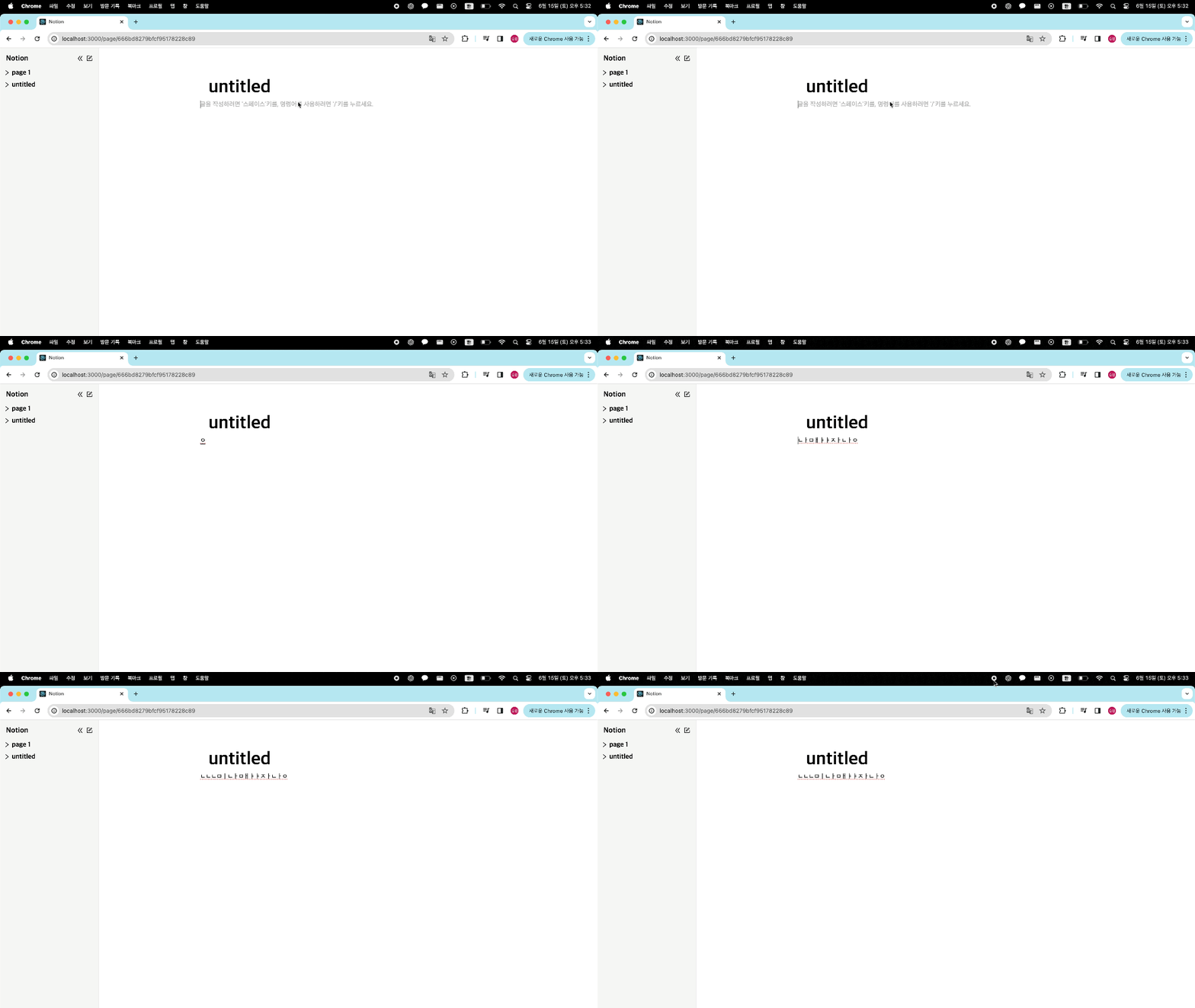
- 하하.. 글자 조합이 안된다 영어는 잘되지만 한글에서 문제가 있는것 같다.. 다시 구글링을 문제를 해결해보자
2. 힌글과 같은 조합문자 문제
- 리렌더링될 때마다 커서 위치를 되돌리는 방법을 적용했지만, 영어와 달리 한글은 조합 문자로 처리되어 추가적인 문제가 발생했다. 한글은 입력 시 하나의 글자가 여러 번의 키 입력을 통해 완성되는데, 이 과정에서 리렌더링이 발생하면 조합 중인 문자가 중단되거나 깨질 수 있다는 것이다.
해결방법
구글링으로 찾아보니 나와 같은 문제를 겪는 사례가 많이 있었다. 이러한 문자 조합을 onCompositionStart와 onCompositionEnd 이벤트를 사용하여 문제를 해결할 수 있다.
-
Composition 이벤트
- onCompositionStart 이벤트는 조합 문자가 입력되기 시작할 때 호출되며, 이때 isComposing 상태를 true로 설정하여 입력 중임을 표시한다.
-
onCompositionEnd
- 이벤트는 조합 문자가 입력이 끝났을 때 호출되며, 이때 isComposing 상태를 false로 설정하고 최종 텍스트를 저장한다.
적용!
import { useEffect, useRef, useState } from "react";
import * as S from "../../styles/BlockStyle";
import restoreCaretPosition from "../../utils/restoreCaretPosition";
import saveCaretPosition from "../../utils/saveCaretPosition";
interface BlockEditorProps {
    index: number;
    id: string | undefined;
    type: string;
    content: string;
    handleContentChange: (index: number, content: string) => void;
}

const BlockEditable = ({
    index,
    id,
    type,
    content,
    handleContentChange,
}: BlockEditorProps) => {
    const [isComposing, setIsComposing] = useState(false); // 글자를 조합중인지 판별
    const caretPositionRef = useRef<{
        startContainer: Node;
        startOffset: number;
        endContainer: Node;
        endOffset: number;
    } | null>(null);

    const handleInput = (e: React.FormEvent<HTMLDivElement>) => {
        saveCaretPosition(caretPositionRef);
        // isComposing=false일때 === 문자 조합이 끝났을 state를 변경한다.
        if (!isComposing && e.currentTarget && caretPositionRef.current) {
            const newContent =
                (e.currentTarget as HTMLDivElement).textContent ?? "";
            handleContentChange(index, newContent);
        }
    };
    //

    useEffect(() => {
        if (!isComposing && caretPositionRef.current) {
            restoreCaretPosition(caretPositionRef);
        }
    }, [content, isComposing]);

    return (
        <S.BlockContainer>
            <S.Block
                data-position={index}
                contentEditable
                suppressContentEditableWarning={true}
                onCompositionStart={() => setIsComposing(true)}
                onCompositionEnd={() => setIsComposing(false)}
                aria-placeholder="글을 작성하려면 '스페이스'키를, 명령어를 사용하려면 '/'키를 누르세요."
                onInput={handleInput}
                $type={type as keyof typeof S.blockStyles}
            >
                {content}
            </S.Block>
        </S.BlockContainer>
    );
};

export default BlockEditable;
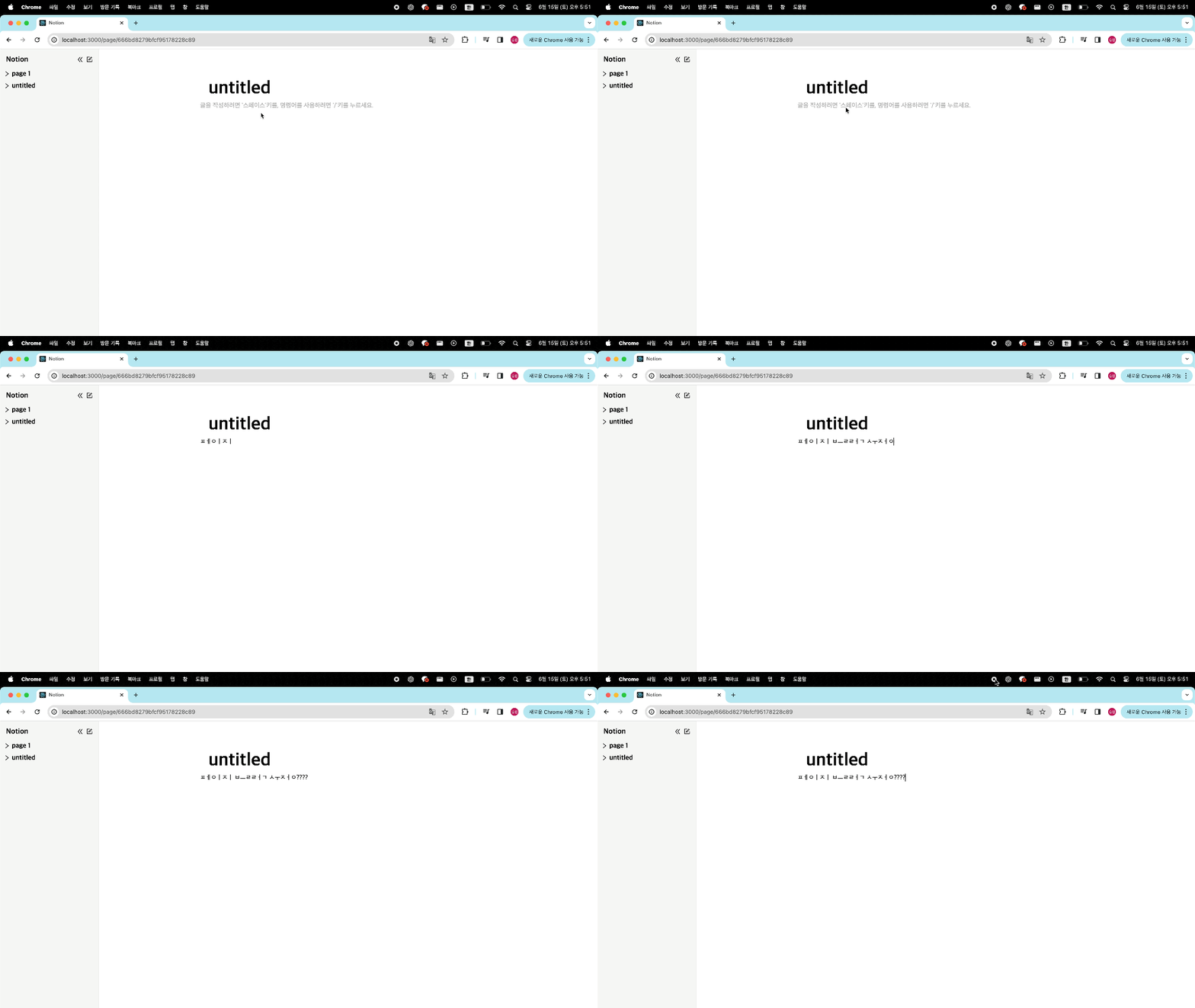
- 해결됐다! 한글이 조합되었다.
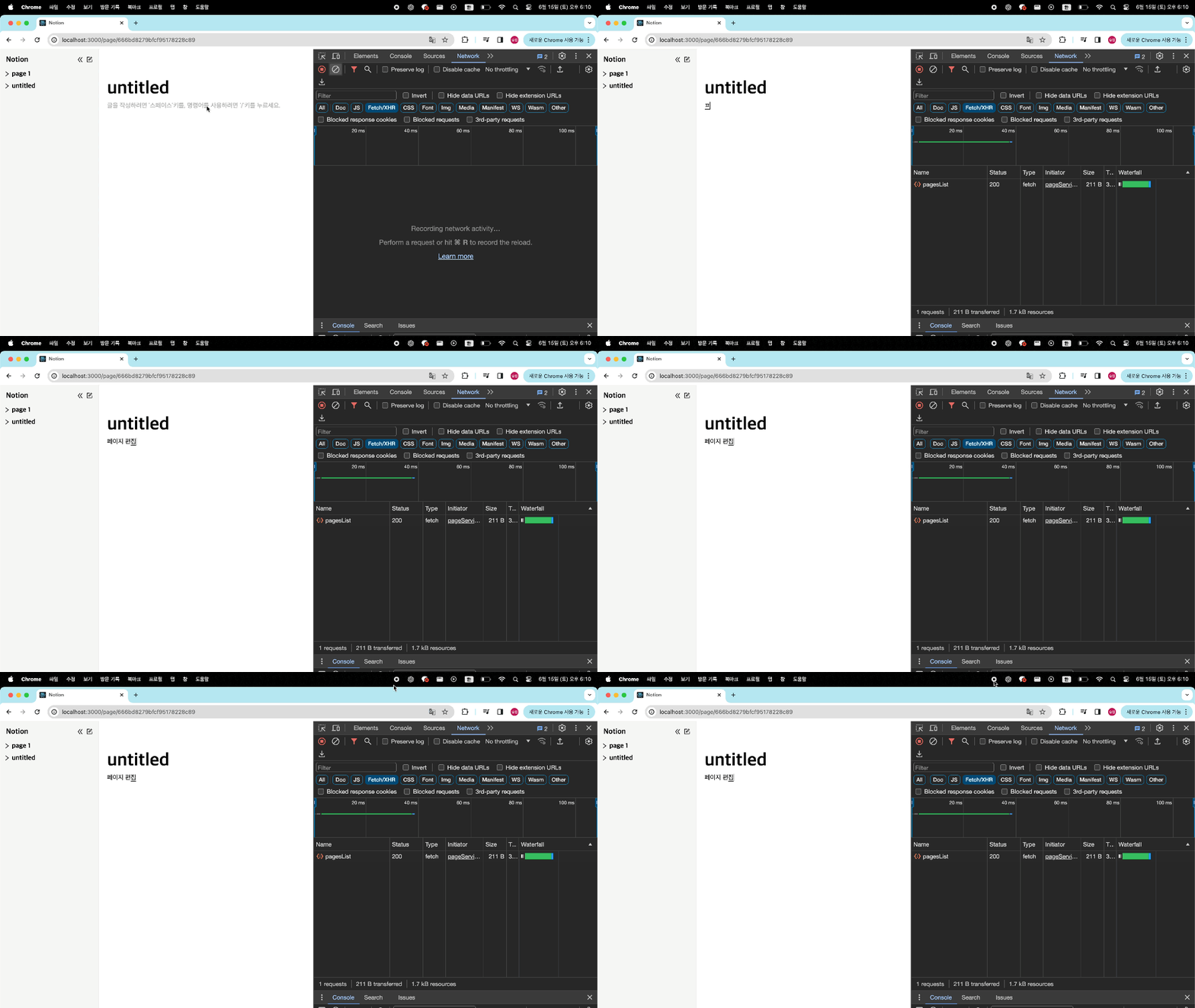
- 이제 디반운스로 입력이 멈추면 1초뒤에 handleContentChange(index, newContent);로 서버에 저장이 되고 다시 데이터를 잘 받아오는지 확인해보자
3. 서버 전송 문제
- 서버로 전송이 안된다........
- 디버깅해보니 글자를 계속 입력중이면 브라우저는 텍스트를 입력중이라 판단해 isComposing값이 계속 true가 된다..어떻게 해결해야할까..
한글자가 완성될때마다 === onCompositionEnd 될때마다 디바운스로 서버에 데이터를 보내버리자!
- onCompositionEnd이되면 그때마다 데이터를 서버에 저장하면 될것이라 생각해 적용해봤다.
onCompositionEnd={handleCompositionEnd}

const handleCompositionEnd = (e: React.FormEvent<HTMLDivElement>) => {
    setIsComposing(false);
    const newContent =
        (e.currentTarget as HTMLDivElement).textContent ?? "";
    handleContentChange(index, newContent);
};
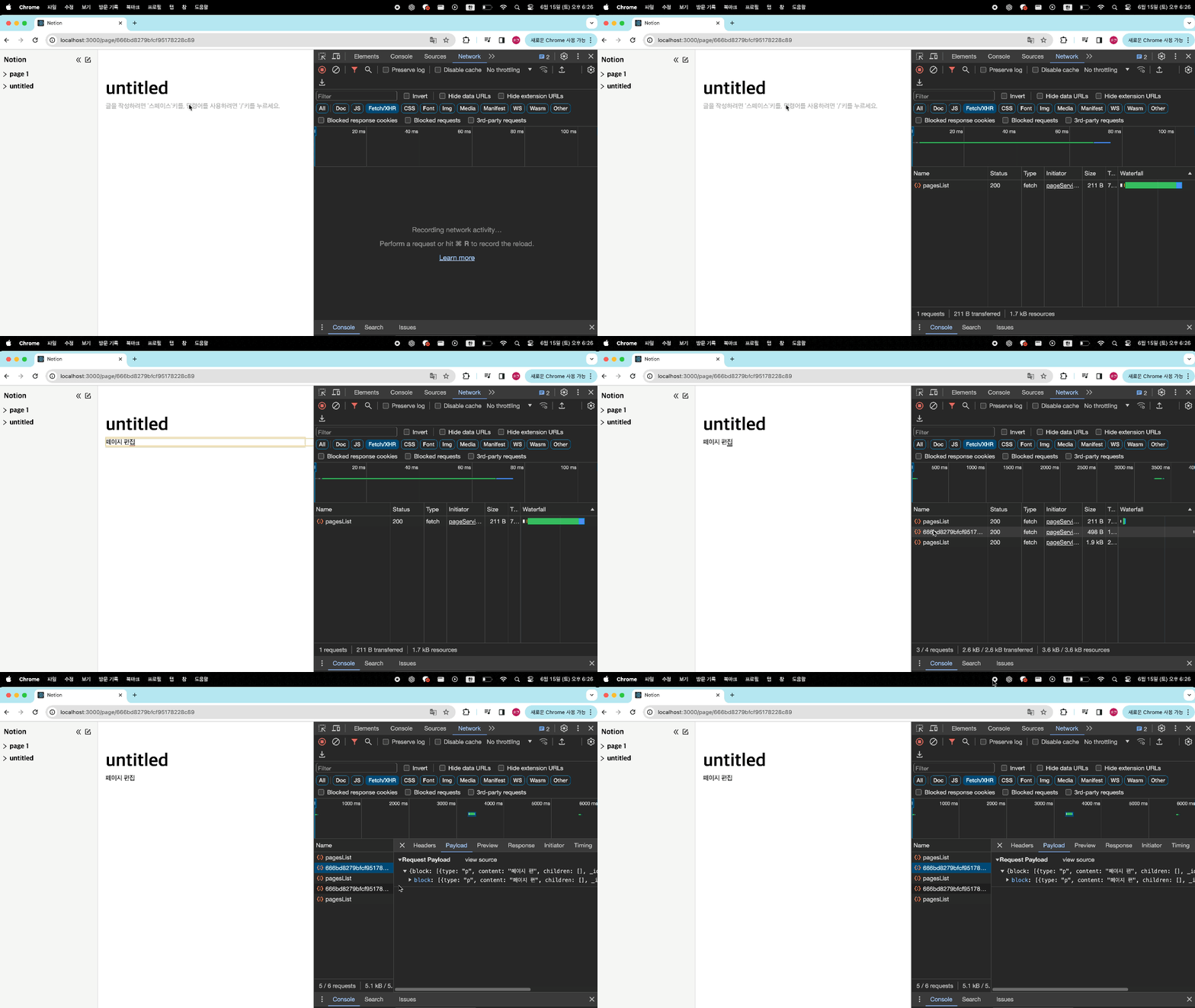
- 됐다 데이터가 전달되고 다시 불러와진다!!
- 하지만 이제 해결 됐다 생각했지만 진짜 문제는 이제부터 시작이였다.
4. 페이지 이동시 전 커서위치 저장으로 인한 에러
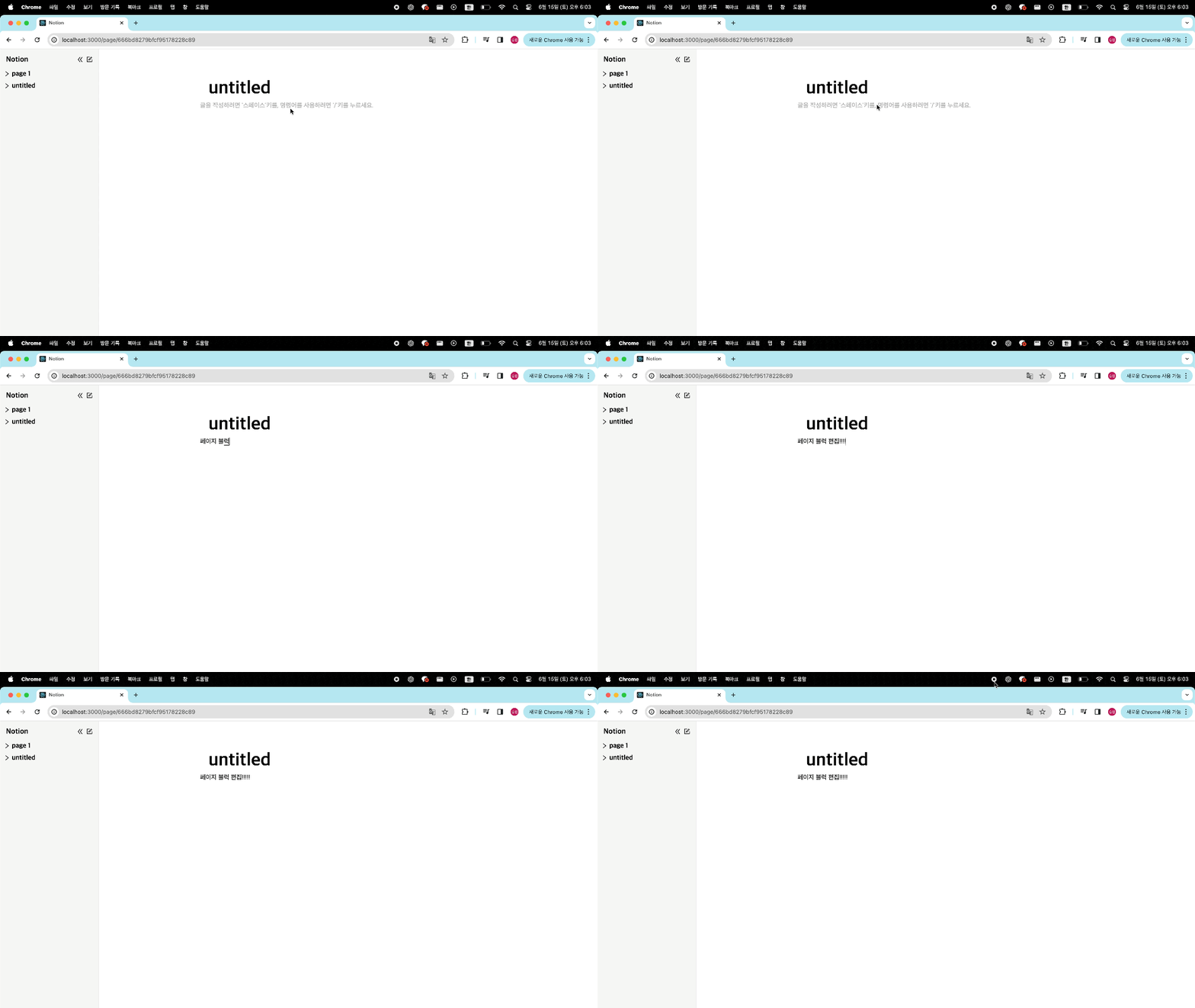
- 문제를 gif로 보자
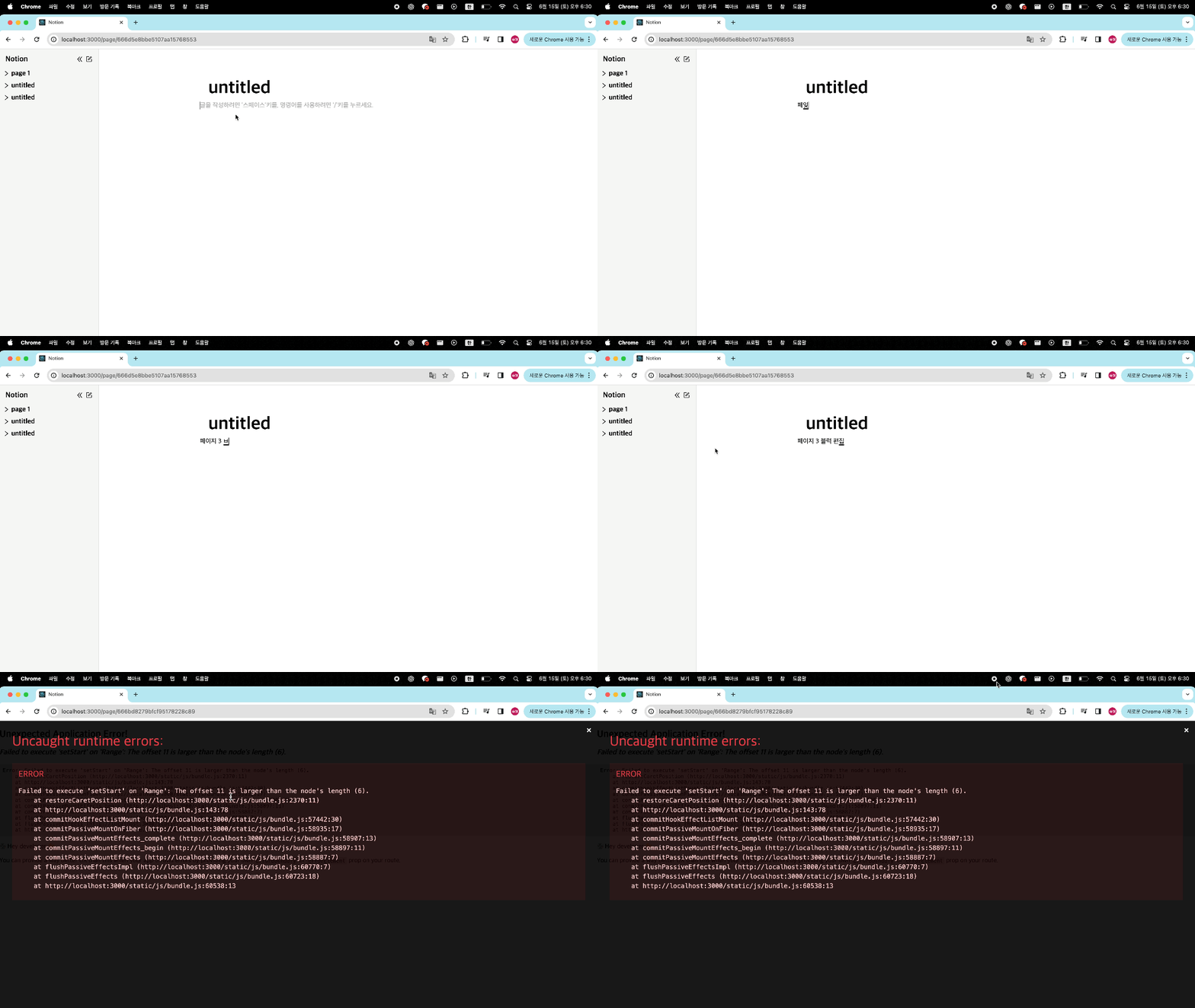
무슨 에러인지 파악해보자
- 위에서 "페이지3 블럭 편집"이라고 입력하고 페이지를 전환했다. 이때 무슨일이 일어나는지 하나씩 살펴보자
- 텍스트 입력
- 사용자가 "페이지3 블럭 편집"이라고 입력한다.
- 텍스트 입력 시 caretPositionRef에 현재 커서 위치 저장
- handleInput 함수가 호출되어 caretPositionRef에 현재 커서 위치가 저장된다.
- 예를 들어, 커서가 "페이지3 블럭 편집" 텍스트의 마지막에 위치하고 있다면, caretPositionRef는 마지막 문자 이후의 위치를 기억한다.
- caretPositionRef에는 "페이지3 블럭 편집" 텍스트에서 마지막 텍스트 번째 위치를 기억하고 있다
- 이 시점에서 caretPositionRef는 startOffset과 endOffset이 11로 설정되어 있다.
- 페이지 이동
- 사용자가 페이지를 이동한다.
- 이동한 페이지 블럭 텍스트에는 "페이지3 블럭"이라는 짧은 텍스트가 있다고 가정하자.
발생하는 문제
- 페이지 이동 후, 커서 위치를 복원하려고 할 때 restoreCaretPosition 함수가 호출된다. 이 함수는 이전 페이지에서 저장된 커서 위치를 현재 페이지의 텍스트 노드에 적용하려고 한다.
- caretPositionRef에는 "페이지3 블럭 편집" 텍스트에서 마지막 위치인 11을 기억하고 있다.
- 페이지 이동 후, 텍스트가 "페이지3 블럭"으로 줄어들었다. 즉, 텍스트의 길이가 6이 되었다.
- restoreCaretPosition 함수에서 range.setStart와 range.setEnd가 호출될 때, 오프셋 11을 사용하려고 한다.
- 하지만 새로운 텍스트 노드의 길이는 6이기 때문에, 오프셋 11은 유효하지 않다.
- 이로 인해 Failed to execute 'setStart' on 'Range': The offset 11 is larger than the node's length (6). 오류가 발생한다.
또 해결해보자..
- 이번 에러는 간단하다. 페이지가 전환되면, 즉 페이지 id가 바뀌면 커서위치를 그냥 없애주면 된다!
### 적용
useEffect(() => {
    const selection = window.getSelection();
    selection?.removeAllRanges();
    caretPositionRef.current = null;
}, [id]);
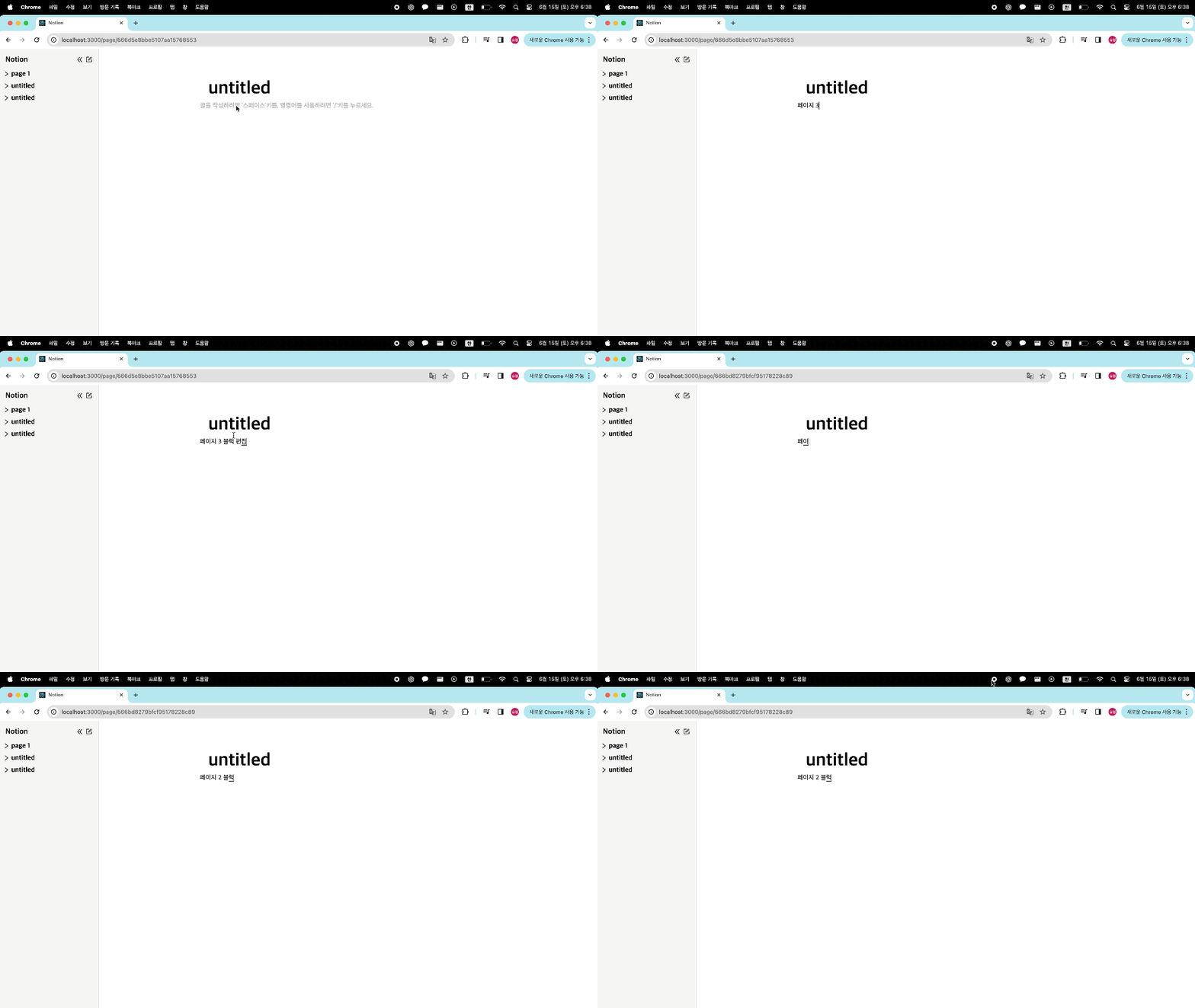
- 해결됐다. 하지만 또 문제가 생긴다 ㅎㅎㅎㅎㅎㅎ
5. 마지막 텍스트만 데이터 전송이 안되는 문제
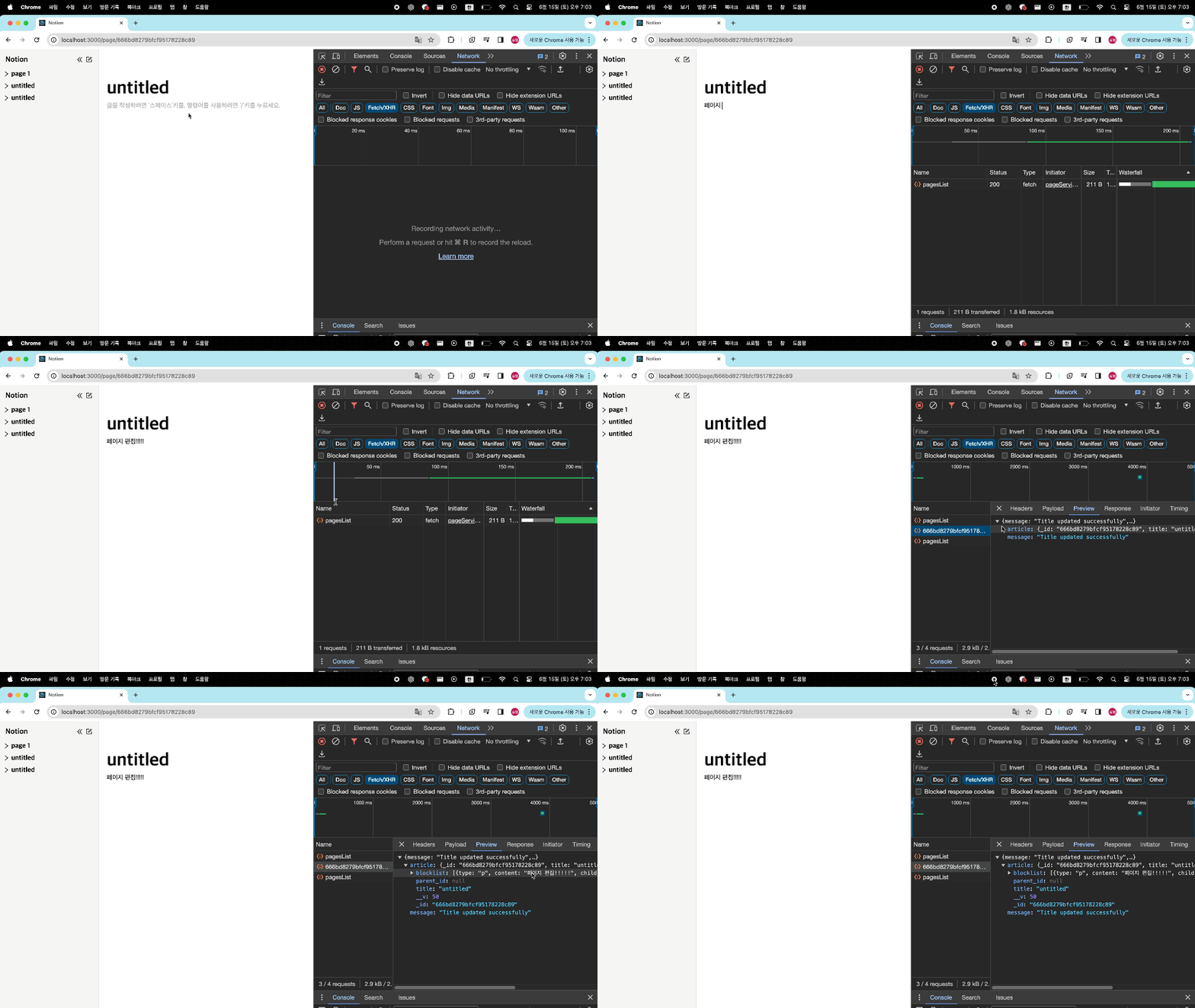
- 위 3. 서버 전송 문제 네트워크 탭을 다시 봐보자
- 서버로 content가 보내졌지만 "페이지 편집" 이라고 입력했는데, "페이지 편"까지만 데이터가 보내졌다.
- 무슨 문제일까?...
onCompositionEnd 문제
- 위에서 설명한 바와 같이, onCompositionEnd는 글자 조합이 끝났는지 판단하는 이벤트다. 위 사진에 텍스트 입력 중에 글자 아래에 밑줄이 그어져 있는 경우를 볼 수 있다. 밑줄이 그어져 있으면 브라우저는 사용자가 아직 문자를 조합 중이라고 판단하여 onCompositionEnd가 호출되지 않는다.
이번엔 어떻게 해결할까..
- 방법을 갈구 하던중 다른 동료분들이 useRef를 사용해보라는 조언을 주었다.
- 지금까지 발생한 문제들의 근본적인 원인은 리렌더링으로 인한 커서 위치 초기화였다. useState를 사용하면 상태가 변경될 때마다 컴포넌트가 리렌더링되므로, 커서 위치가 초기화되는 문제가 발생했다. 하지만 useRef를 사용하면 이러한 문제를 해결할 수 있었다.
설계
- onInput 이벤트로 텍스트가 변경될때마다 서버로 데이터를 보낸다(디바운스로 함수가 실해되어 사용자 입력이 끝나고 1초뒤에 전송됨)
- useQuery에 등록된 key값으로 데이터를 다시 요청해 컴포넌트를 다시 그린다.
- 이때 커서 위치를 되돌린다.
해결!
적용!!!!!(전체 코드)
/ Page.tsx
import { useLocation, useParams } from "react-router-dom";
import styled from "styled-components";
import { BlockType, PageType } from "./SideBar";
import BlockEditable from "../components/BlockEditable/BlockEditable";
import TitleEditable from "../components/TitleEditable/TitleEditable";
import { useCallback, useEffect, useRef } from "react";
import { useMutation, useQueryClient } from "react-query";
import { patchBlock } from "../services/pageService";
import debounce from "../utils/debounce";

const Page = () => {
    const { id } = useParams();
    const location = useLocation();
    const queryClient = useQueryClient();
    const state: PageType = location.state;
    const blocks = useRef<BlockType[]>([]);

    const { mutate } = useMutation({
        mutationFn: async ({
            id,
            blocks,
        }: {
            id: string | undefined;
            blocks: BlockType[];
        }) => {
            await patchBlock(`page/block/${id}`, { block: blocks });
        },
        onSuccess: () => {
            queryClient.invalidateQueries({ queryKey: ["pageList"] });
        },
    });

    const handleContentChange = (index: number, newContent: string) => {
        const updatedBlocks = blocks.current.map((block, i) =>
            i === index ? { ...block, content: newContent || "" } : block
        );
        blocks.current = updatedBlocks;
        debouncedMutation({ id, blocks: updatedBlocks });
    };

    // eslint-disable-next-line react-hooks/exhaustive-deps
    const debouncedMutation = useCallback(
        debounce(
            async ({ id, blocks }: { id: string | undefined; blocks: BlockType[] }) => {
                mutate({ id, blocks });
            }
        ),
        [mutate]
    );

    useEffect(() => {
        blocks.current = [...state.blocklist];
    }, [id, state]);

    return (
        <PageContainer>
            <TitleEditable id={id} title={state.title} />
            {blocks.current &&
                blocks.current.length > 0 &&
                blocks.current.map((currentBlock, idx) => (
                    <BlockEditable
                        key={idx}
                        index={idx}
                        id={id}
                        type={currentBlock.type}
                        content={currentBlock.content}
                        handleContentChange={handleContentChange}
                    />
                ))}
        </PageContainer>
    );
};

export default Page;

const PageContainer = styled.div`
    max-width: 100%;
    height: 100%;
`;
/BlockEditable.tsx
import { useEffect, useRef } from "react";
import * as S from "../../styles/BlockStyle";
import restoreCaretPosition from "../../utils/restoreCaretPosition";
import saveCaretPosition from "../../utils/saveCaretPosition";
interface BlockEditorProps {
    index: number;
    id: string | undefined;
    type: string;
    content: string;
    handleContentChange: (index: number, content: string) => void;
}

const BlockEditable = ({
    index,
    id,
    type,
    content,
    handleContentChange,
}: BlockEditorProps) => {
    const caretPositionRef = useRef<{
        startContainer: Node;
        startOffset: number;
        endContainer: Node;
        endOffset: number;
    } | null>(null);

    const handleInput = (e: React.FormEvent<HTMLDivElement>) => {
        saveCaretPosition(caretPositionRef);
        const newContent = (e.currentTarget as HTMLDivElement).textContent ?? "";
        handleContentChange(index, newContent);
    };

    useEffect(() => {
        const selection = window.getSelection();
        selection?.removeAllRanges();
        caretPositionRef.current = null;
    }, [id]);

    useEffect(() => {
        restoreCaretPosition(caretPositionRef);
    }, [content]);

    return (
        <S.BlockContainer>
            <S.Block
                data-position={index}
                contentEditable
                suppressContentEditableWarning={true}
                aria-placeholder="글을 작성하려면 '스페이스'키를, 명령어를 사용하려면 '/'키를 누르세요."
                onInput={handleInput}
                $type={type as keyof typeof S.blockStyles}
            >
                {content}
            </S.Block>
        </S.BlockContainer>
    );
};

export default BlockEditable;
느낀점
- 이번 프로젝트를 통해 contentEditable을 사용하여 텍스트 편집 기능을 구현하면서 많은 것을 배울 수 있었다. 처음에는 간단하게 생각했던 작업이었지만, 다양한 브라우저 간의 호환성과 예기치 않은 버그들로 인해 예상보다 훨씬 많은 시간이 소요되었다.
-
디버깅의 중요성 각각의 문제를 해결하기 위해 많은 시간을 디버깅에 투자했다. 특히, 한글과 같은 조합 문자를 입력할 때 발생하는 문제나 커서 위치가 초기화되는 문제를 해결하는 과정에서, 문제의 원인을 정확히 파악하는 것이 얼마나 중요한지를 다시 한 번 깨달았다. 디버깅을 통해 문제의 근본 원인을 찾고, 이에 맞는 해결 방법을 적용하는 과정이 매우 유익했다.
-
useState와 useRef의 차이점 리렌더링으로 인한 커서 위치 초기화 문제를 해결하면서, useState와 useRef의 차이점을 명확히 이해하게 되었다. useState는 상태가 변경될 때마다 컴포넌트를 리렌더링하지만, useRef는 값이 변경되어도 리렌더링을 일으키지 않는다. 이를 통해 특정 상황에서는 useRef를 사용하는 것이 더 적절하다는 것을 배웠다.
-
문제 해결 능력 향상 이번 프로젝트를 통해 문제를 분석하고 해결하는 능력이 향상되었다. 각각의 문제를 하나씩 분석하고, 해결 방법을 찾아내는 과정에서 많은 것을 배웠습다. 특히, 복잡한 문제일수록 단계별로 접근하여 하나씩 해결하는 것이 중요하다는 것을 깨달았다.